Four students in an intro environmental science course scored below 15 on the same assignment. Their instructor wanted to act before the pattern hardened: find those four, group them, build a shorter reinforcement assignment aimed just at them, and message each one before the next class. Done by hand, that's a trip through the gradebook, the People page, the assignment editor, and the Inbox, with a lot of clicking in between. With IgniteAI Agent in Canvas, the instructor did all of it in one conversation, without opening a separate AI tool.
Getting AI-powered help with your course used to mean going outside Canvas. It doesn't anymore.
The workaround has been leaving Canvas
For a couple of years, the standard move has been to open a general-purpose chatbot like ChatGPT in another tab, describe what you need, and paste the result back into Canvas by hand. It works, but your course context doesn't travel with you, so you spend the time you saved toggling between tabs or re-explaining your syllabus along the way.
IgniteAI keeps AI inside Canvas
IgniteAI Agent is a conversational assistant built into Canvas. It works across more than 500 Canvas APIs, so it can take real action on your behalf rather than just suggesting text. You describe what you want in plain language, and it can pull data, create content, and make changes across your course just by prompting the Agent.
Because it lives in Canvas, it answers both problems with workarounds at once. It's grounded in your actual course context, so a request like “the students who scored below 15 on the last assignment” resolves to real people in your roster, with no re-explaining. It runs inside your institution's environment so:
- access is admin-controlled and opt-in at the course, department, or institution level
- interactions stay within your instance instead of training an outside model
- every AI feature carries an “AI Nutrition Facts” label that spells out the model, the data it touches, and how privacy is handled
It also asks before it acts. The Agent shows you its planned steps and waits for your approval, so nothing in your course changes until you say go. You get the reach of an agent that can operate in Canvas, without sending your work to one that operates outside it.
From a list of names to a sent message
Here's the sequence that ran in that environmental science course, start to finish, in one chat.
We start with a question: “Can you pull a list of all students who scored below 15 points on the High Impact on the Environment assignment?” The Agent retrieved the submissions and returned the four students and their scores.

Next came grouping. The instructor asked the Agent to create a tag called “Supplemental” and assign those four students to it. The Agent laid out its plan, the instructor approved it, and the differentiation tag was created and applied in a single step. As the Agent pointed out, that tag could then drive targeted assignment overrides, group messages, or extra instruction for exactly those students.
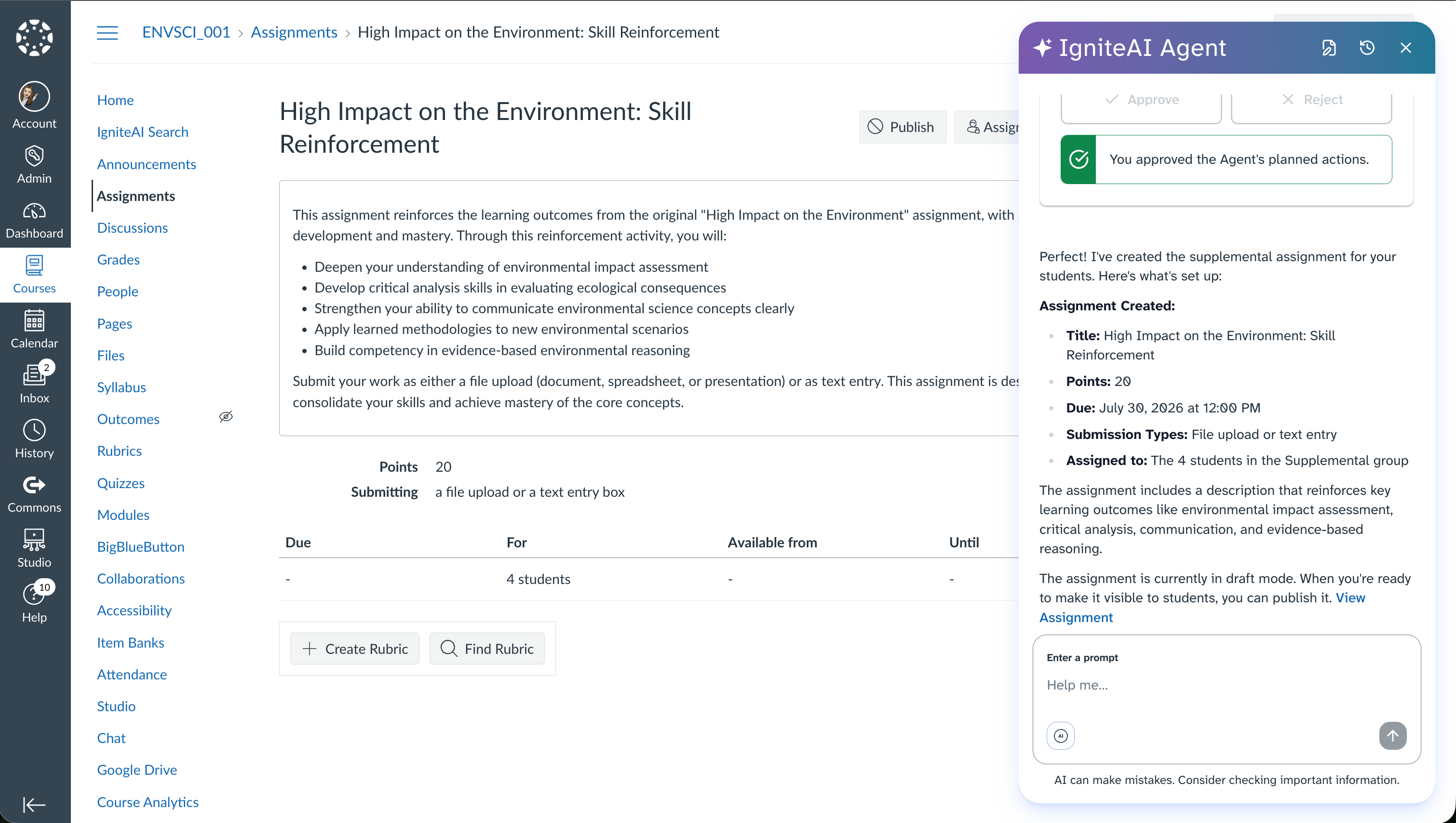
With the group in place, the instructor asked for a new assignment to reinforce the original learning outcomes. The Agent asked the useful clarifying questions first: title, submission type, point value, due date, and whether to assign it to the Supplemental group or the whole class. Once the instructor answered, it built the assignment, scoped to the four tagged students, and left it in draft mode to publish when ready.
Then communication. The instructor asked the Agent to draft a message telling those students about the new assignment and inviting them to reach out or review the week's reading. The Agent wrote it, confirmed before sending, and delivered it to each student's Canvas inbox.


Four routine tasks that normally span across four corners of Canvas, done in one place, with the instructor approving each step.
What the Agent handles across your course
That scenario touched student data, assessment, and communication. Here's the fuller picture of the administrative work the Agent can take on, grouped the way instructors already think about their courses.
Course management
- Create and organize modules, assignments, quizzes, and discussions
- Set up and manage course content and structure
- Export course content for backup or transfer
- Create and edit wiki pages
Student management
- View student progress and performance data
- Find students in your courses
- Create and manage groups and differentiation tags
- View outcome results and learning progress
Communication
- Create announcements for your courses, including the same announcement across several courses at once
- Draft and send messages to students
- Manage discussions and conversation threads
Assessment
- Create and manage assignments with due dates
- Set up quizzes with various question types
- Manage assignment extensions and overrides
- Track submissions and grades
You stay in control
The Agent can do anything you're already able to do in Canvas, and nothing you can't. It acts only when you prompt it, and it checks in at key moments, so you approve the work rather than hand it over. That approval step keeps a person accountable for every change. It’s always worth reviewing what the Agent proposes before you confirm, especially on actions that overwrite content you've already built.
Try it in your own course
IgniteAI Agent is currently available with Canvas Next. If you see the IgniteAI sparkle icon on your Canvas dashboard, the Agent is ready for you. Open it and start with something small from your own to-do list, like drafting an announcement or pulling a list of students who missed the last quiz.
The AI landscape feels huge and, in many ways, unknowable; the headlines are full of new tools, new models, new protocols, best practices, the risks of using or not using AI a certain way . Instructure believes that AI doesn’t need to be complicated to be powerful. IgniteAI Agent already lives where you teach, inside the system that already holds your course, so the work you were going to do anyway takes fewer steps.
See more examples of how instructors are changing how they work with the IgniteAI Agent in the Instructure Community.