Quick quiz: What is the biggest barrier to creating engaging, frequent, and effective quizzes for your students?
A. The sheer number of hours it takes to write quality questions based on your lesson plan.
B. Finding the right balance between assessment rigor and administrative overhead.
C. Wishing you had help with instantly drafting quizzes based on your lesson plans.
(If you answered A or B, you're not wrong, but if you answered C, let's talk about getting those hours back.)
Generate quiz questions effortlessly with full control and customization
In our last post, we took you through the reasoning and rationale behind developing IgniteAI Question Authoring Assistance, namely we understand the time and attention it takes to craft relevant quiz material based on your lesson plan. Today, we thought it would also be great to show you just how quick and easy it is to create effective quizzes, all in a fraction of the time it used to take.
With IgniteAI Question Authoring Assistance, you can leverage and trust the power of AI to quickly and easily generate quiz questions based on your existing course materials. However, control remains completely with you to fine tune as much as you see fit, ensuring your quizzes accurately reflect the lesson material. The best part is, it’s super easy to use, and takes only a few steps. If you’re currently an IgniteAI user, but haven’t yet tried this feature, we’ve created a handy guide below to help you through your quiz creation workflow:
Step 1
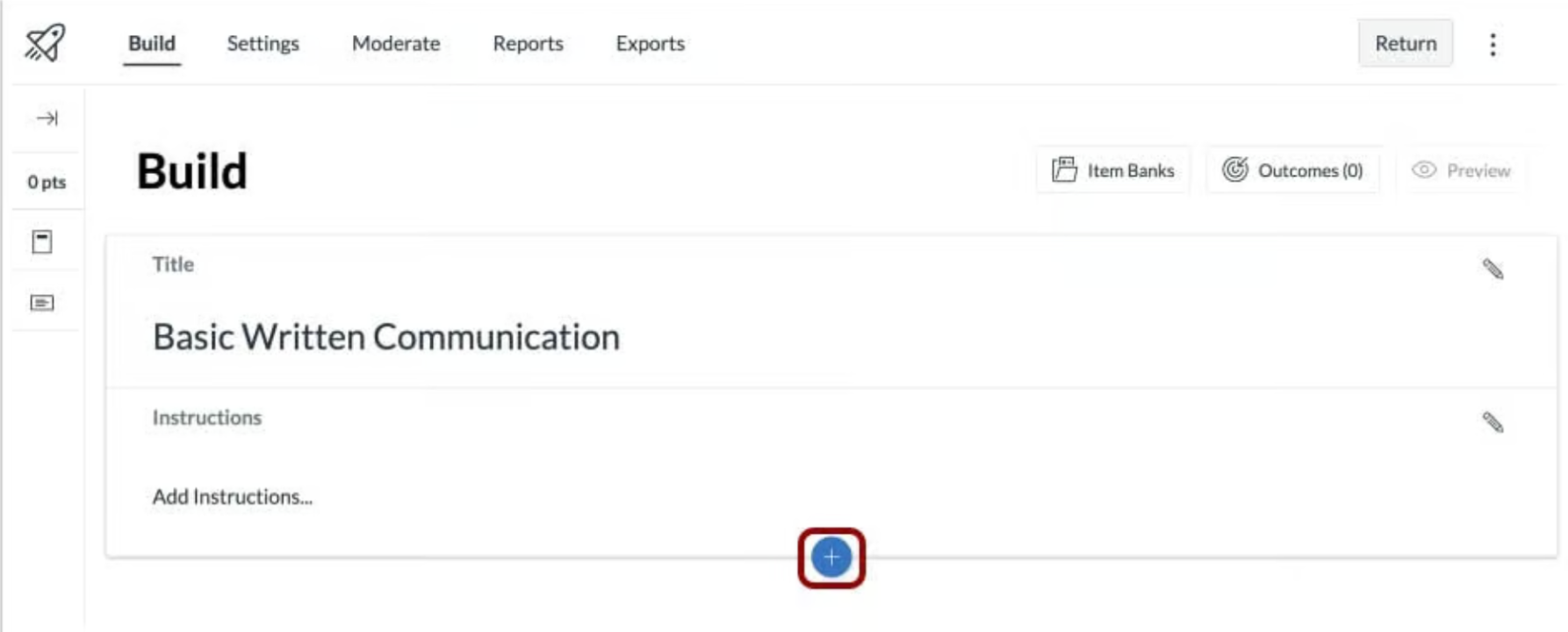
In the Build tab, click the Add (+) button, which opens the Question Authoring. Then click Generate with AI. You can generate questions by choosing existing content, entering text, or uploading files. You can even add a topic focus and select relevant learning outcomes, depth of knowledge, or even language before choosing the question. As you build out your question, you can also add one or many modules, but you can only use one file at a time.
Step 2
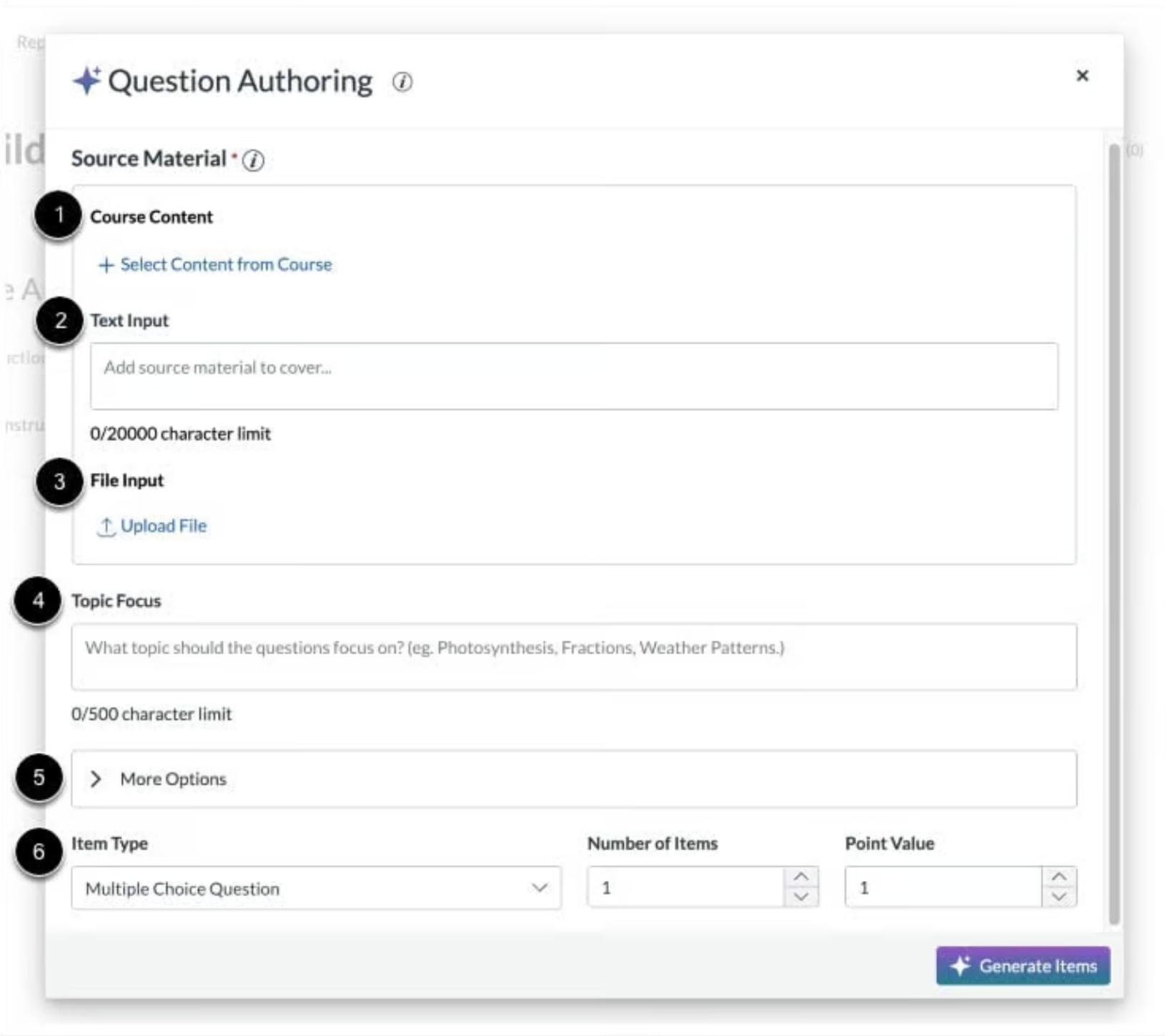
Once complete you can view your files, as well as delete any course contents simply by clicking on the trash icon. If you’d like to refine your results, use the Text Input field to add additional information. We’ve also made it easy to add any files, just by dragging and dropping into the File Input field. It’s important to note that if you added a file to your course content section, you won’t be able to add a file in the File Input field. If you require additional personalization, click the More Options button where you can select the available outcomes and level of outcomes, in addition to language and depth of knowledge.
Step 3
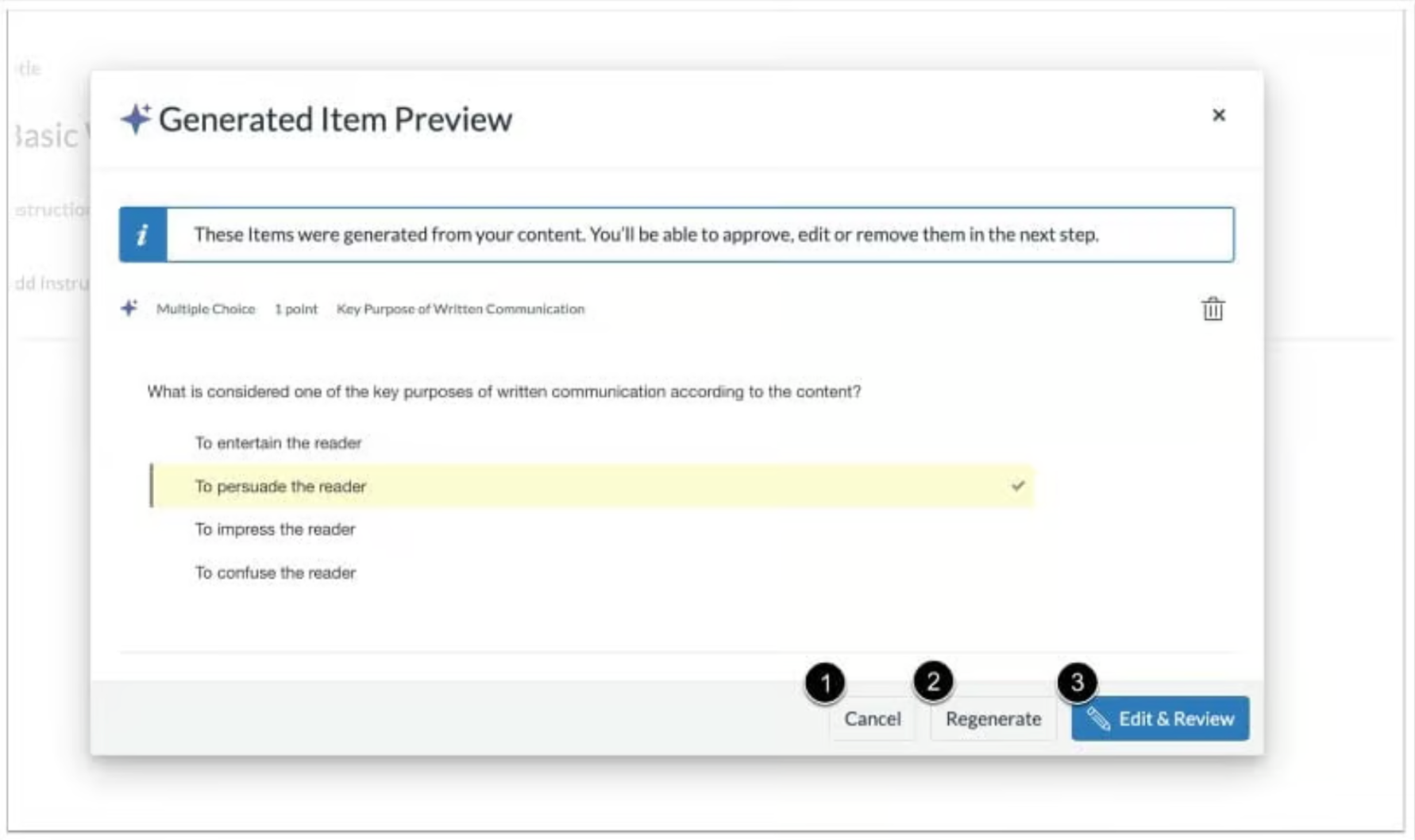
If you wish to review the question, you are able to do so via the Generated Item Preview screen. Within this section, you can also delete, edit, or regenerate a new question. This will ensure you have complete purview and control over the question authoring, regardless of how deep you choose to use this valuable and time-saving feature.
And, that’s about it!
For a video walkthrough of how to use IgniteAI Question Authoring Assistance, you check it out here.
Want to know more about how IgniteAI Question Authoring Assistance is helping educators craft more valuable quizzes in less time? Read about how educators in Volusia County Schools saved upwards of three hours by employing this solution in their classrooms.
This feature is just one of many new and exciting features we’ve developed within IgniteAI, a valuable resource that helps educators spend less time focused on administrative tasks and more time building enriching relationships with learners. To learn more about IgniteAI and see how you can try out features for free, visit IgniteAI.